TableButler - Command line parameters:
With the help of command line parameters you can easily modify
TableButlers
startup actions and appearance.
Commandline parameters are passed to TableButler when it is
started.
To take use of commandline parameters create a link to Tabbut.exe.
Right click the link
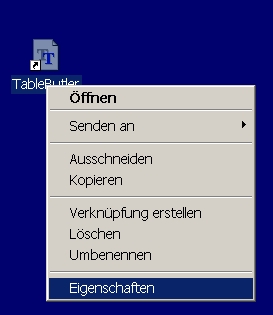
and select Properties from the Popup-menu:
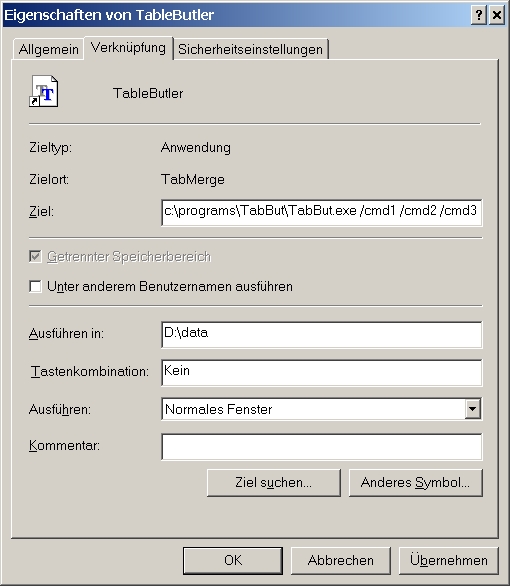
In the Target (Ziel) edit field you can append commandline parameters (in
the example '/cmd1 /cmd2 /cmd3').
Available commands:
- '/ini=d:\mydata\mytabbut.ini' : this command
tells TableButler to use the specified file (inthe example
"d:\mydata\mytabbut.ini") to store TableButler preferences
(e.g. window size and position, visible tabsheet, ....)
- '/macro.load=d:\data\tablebutler\my_macro.tbm' : this command tells
TableButler to load the specified macro.
- '/macro.run' : Execute the loaded macro.
- '/view.hidetabs=nnnnn' : with this option you can "hide" certain Tab-sheet.
Usally users will only use a certain subset of TableButler's
functionality. Therfore you can hide the rarely (or never) used tab-sheets and
preserve a more easy outlook of TableButler.
'nnnn' may contain any of the following shortcuts (divided by ","):
'colfil' = hide Column filter tab
'script' = hide script tab
'srv' = hide server tab
'colcpu' = hide Column CPU tab
'prevw' = hide Preview tab
'genfun' = hide Generic functions tab
'datvw' = hide Data view tab
'/close' = automatically close TableButler. Useful when
loading and running a script.
By default, TableButler will look like:
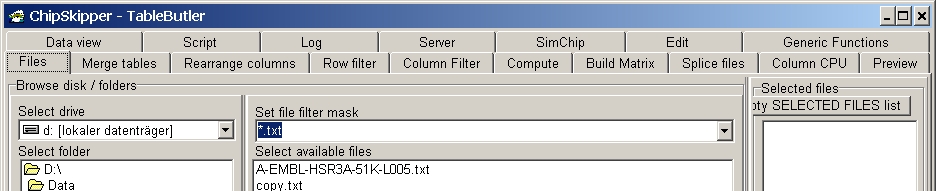
with commandline parameter: '/hidetabs=colcpu,colfil,script,srv,prevw,simchip,genfun,datvw',
you can suppress the seldom used tabsheet:

Last edited 02.03.2006,