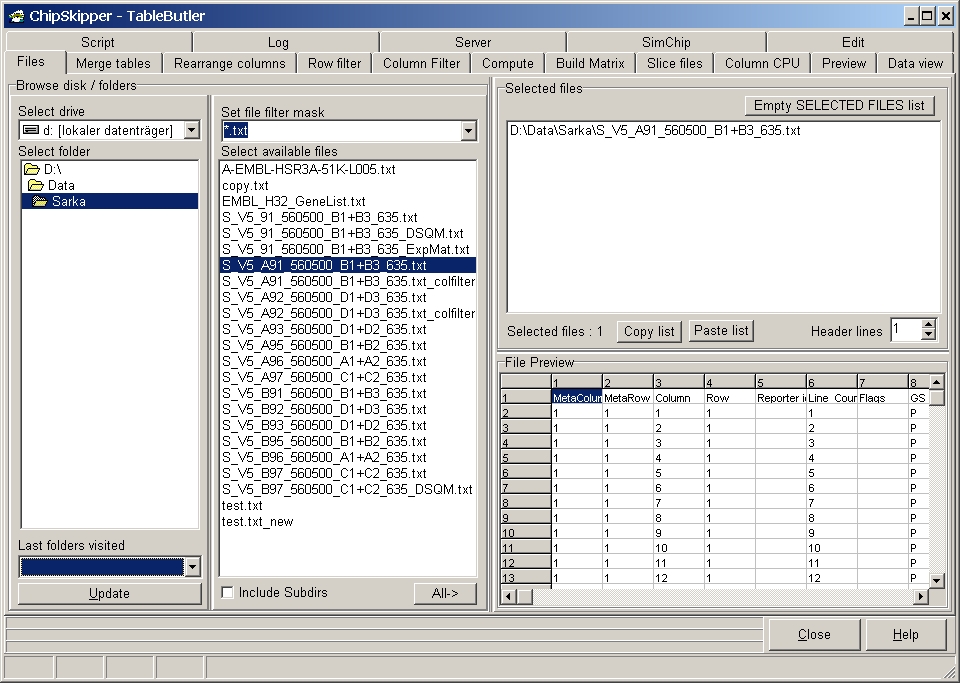
Select a single, multiple or even all files from compleate folder-trees for processing with TableButler.
Go to the Files tab:
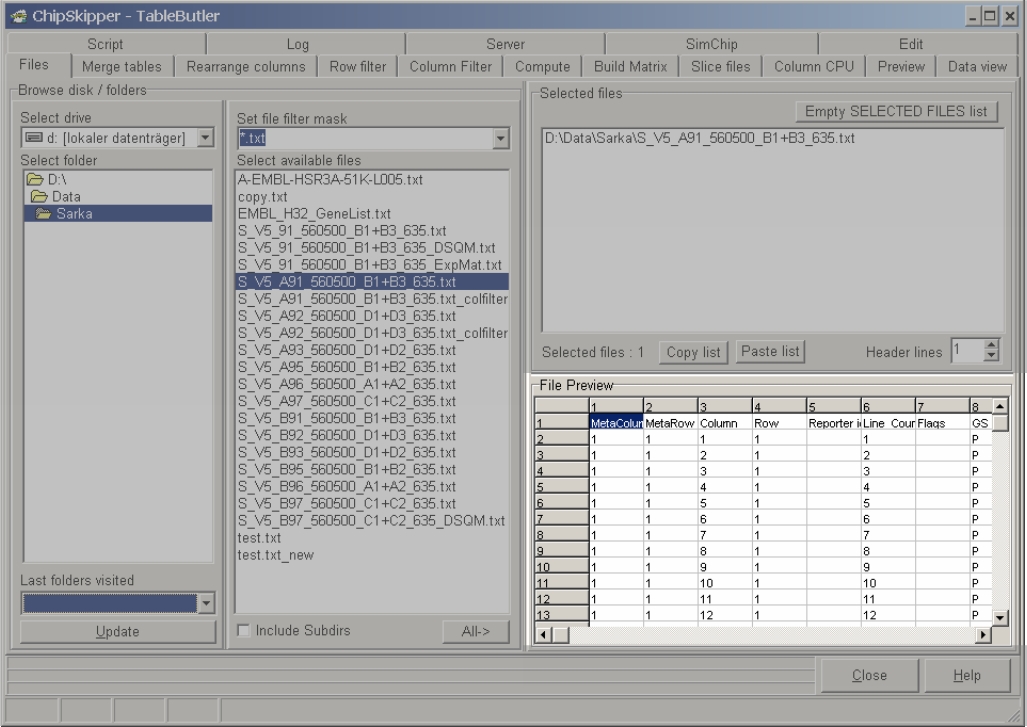
Use the controls in the Browse drive / folders group box to navigate
as usual across your computer's disk drives : change drives (Select drive
drop down list, directories (Select folder tree list), define or select file filters
(Set file filter mask combobox)
Click a file to add it to the list of Selected files which will be processed
subsequently.
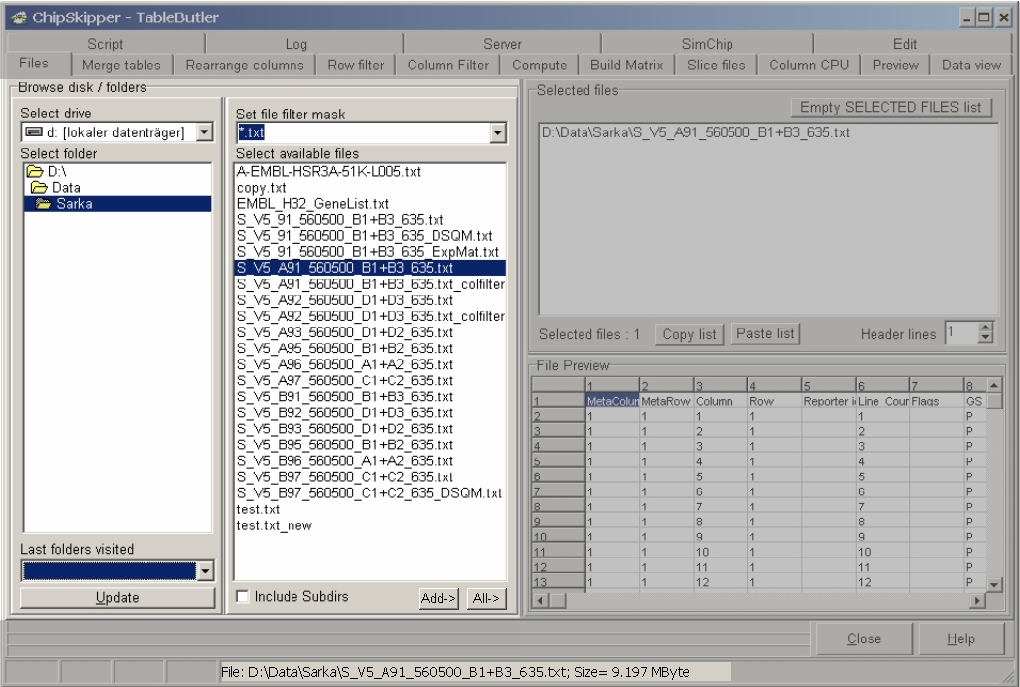
In the statusline youn can see full name and size of the selected file.
Click the ADD-> button to add all selected files.
Click the All->
button to add all files from a directory, .
Click the Include subdirs checkbox and add All-> files with
the given name specification from all directories below the selected one - even
all file from your disk.
Use the list of Last visited folders to jump directly to a folder you
used proviously.
All selected files are used in the subsequent steps.
Click right mouse button on a file name:
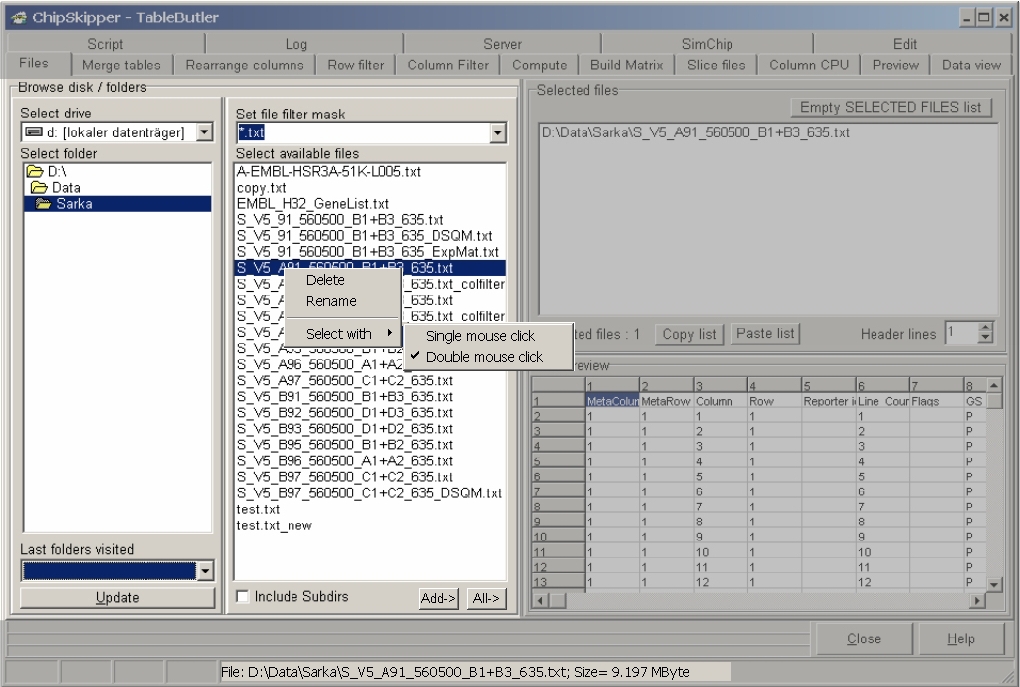
From the Popuo-menu you can
The Selected files list contains the files selected for later processing.
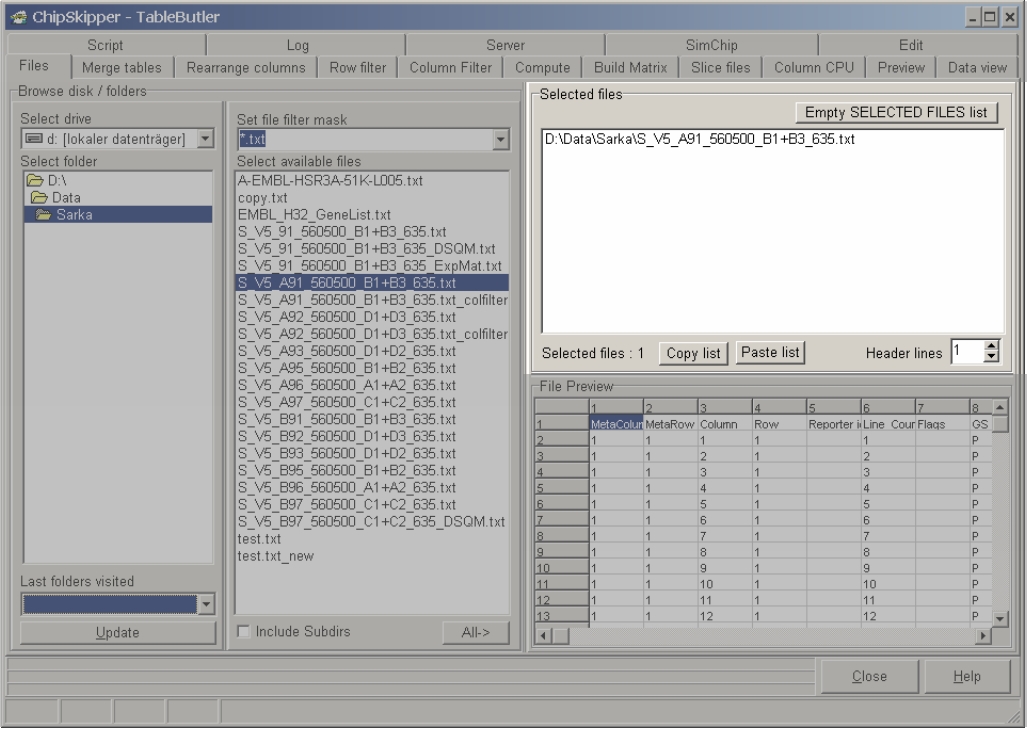
To remove a single file simply click the file with left mouse button.
To remove all files click the Empty SELECTED FILES list button.
Define the number of header lines (which will not be used in subsequent
filtering/coumputation steps) in the Header lines field.
If you want to reuse the list of selected files lateron use the Copy list
button to copy the list into clipboard. Now you can paste it into e.g. Notepad
and save it for later reuse.
Use the Paste list button to paste a file list from clipboard into the
Selected files list.
The file preview show the first view hundred lines (depending of line length) of the just selected file:
Last edited 25.01.2006,