Network viewer - Interactively modify a net

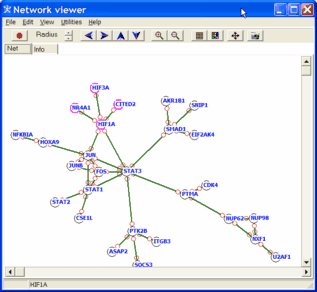
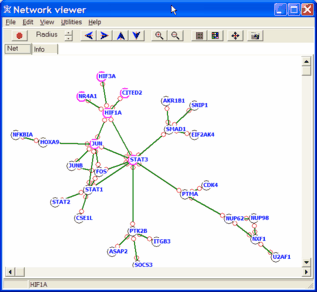
Analyse and modify a net interatively:


Network viewer - Select nodes

Select nodes:


Expand selection:

Click right mouse button on a node.

From the context menu select Expand selection.
All direct neighbours from all selected nodes will be selected too.


Search nodes:

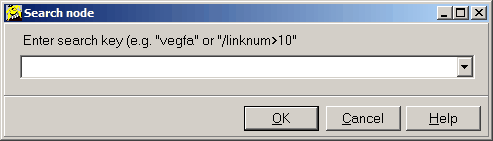
Select Main menu | Edit | Find or click the Search toolbar button

A search dialog opens up:


Search by node's name:

Enter one or (multiple) name(s), separated by spaces.
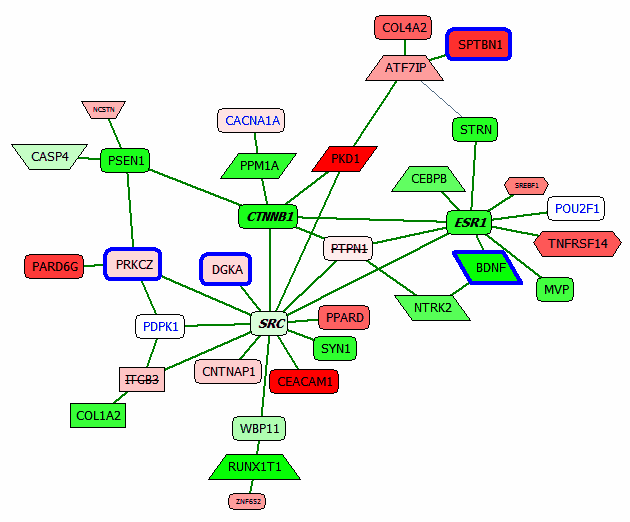
E.g.: "strn casp4 ppard"

Seach for names is not case sensitive.
By default, NetViewer searches for perfect matches:
If your search for "vegf" the node named "VEGF" will be selected but not "VEGFA" or "VEGFR".

Use a wildcard ( * ) to search for any versions of VEGFxxx - search for "vegf*".

If you want to search a whole list of names for similar nodes specify "/pm" for parital match:
E.g. search for all version of "/pm egf casp" will find something like:
- VEGF, VEGFA, VEGFR as well as EGF, EGFR, ...
- CASP1, CASP2, CASP3, ...


Search by node's link degree:

Specify as search:
"/linknum>10"
All nodes with more then 10 connected neighbours are selected.
Finding the highly interconnected nodes allows to identify the backbone of your net.

"/linknum<3"
All nodes with 1 or 2 neighbours are selected
Minimize/hide/or delete the not sooo informative endnodes.


Shortest connecting tree:

Select two or more nodes.

From NetViewer main menu select
Main menu | Utilities | Sortest connecting tree
or click the corresponding toolbar button.

NetViewer tries to connect all selected nodes with viewest hops across the displayed network.

At present, NetViewer does not support weights for connections (edges in the graph).


Move nodes:

Select one or multiple node(s). Just move them around with mouse, left button klicked.

Alternatively use the arrow tool-buttons.
- move left/right/up/down
- rotate clockwise/counter clckwise
- explode/implode selected nodes around their centre of mass


Modify nodes - Change nodes settings:

Right mouse click onto a node. From context menu select to change:
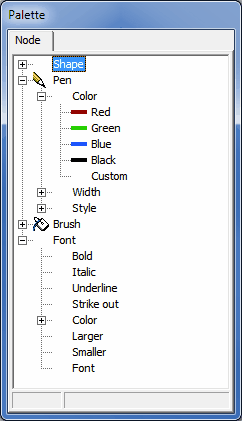
or - better open the "Node Palette" from the tool bar:


Click any option
It will be applied top modify all selected nodes.


Hyperlink:

Double click a node to visit the web-link associated with this node (only if a web-link was defined for this node, default is NCBI gene.


Create / Delete nodes

Create a net from scratch or add nodes to an existing net.

Create a single new node

Right click with mouse into the window - NOT a node, link nor background image.
From context menu select: New node.
Or select from Main menu | Edit | New nodes.
Or press INSERT key on the keyboard.


A new node is created.
Use the dialog to define the node's name, or change it later (see above).
Change the new nodes properties and create links to/from other nodes.


Create multiple nodes

Select from Main menu | Edit | New list of nodes.

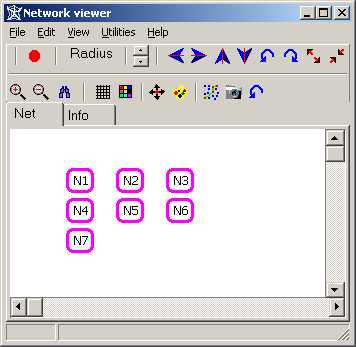
In the dialog, enter a list of node names separated by Space or TAB. The new nodes are added to the existing graph and positioned in the upper left corner within the window in a rectangular configuration.

Create links, between the new (and existing) nodes, arrange them and change their porperties.


Supply the list:
N1 N2 N3 N4 N5 N6 N7

This will generate:


Create a network from a list of binary interactions (node pairs).

Prepare a list of node pairs:
Copy such a list (into Windows's clipboard).

Select from Main menu | Edit | Paste list of binary interactons.

NetViewer reads the content of Windows' clipboard and tries to build a network:
Create additional links between the new (and existing) nodes, arrange them and change their porperties.

Supply a list of binary interactions:
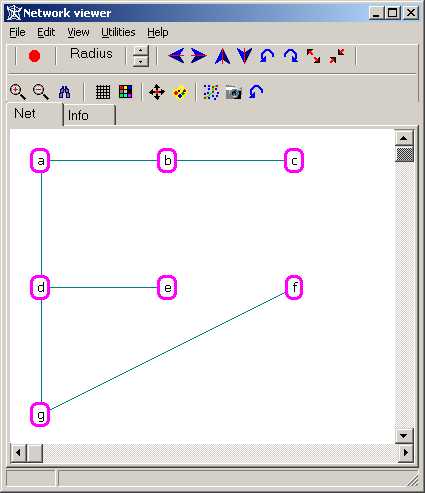
a b
a c
a d
b c
d e
f g
g d

to create the generic network:


Or a list with binary interactons and weight:
a b 1.5
a c -2.1
a d 0.3
b c 1.6
d e -0.6
f g -0.4
g d 2.1


Delete nodes

To delete the selcted node(s) use the delete option from the nodes context menu,
or press the DELETE key on keyboard.


Create / Delete new link


Select a single node.
Right click and select from context menu New link.
Or press Shift + Insert keys on the keyboard.
Now click into another node to create a new link between the selected and the other node.

Select a single node.
Right click and select from context menu Delete link.
Or press Shift + Delete keys on the keyboard.
Now click into another node to deltet the link between the selected and the other node.


Toolbar / Buttons

Select all nodes
Change radius of selected nodes' circles
Move selected nodes left / right / up / down
Rotate selected nodes Counterclock wise / clockwise
around centre of mass from selected nodes
Expand / Shrink selected nodes subnet
around centre of mass from selected nodes
Zoom net in / out
Arrange nodes on grid
Set selected nodes' colour
Auto arrange nodes in the net
Open Palette tool to modify look of selected nodes
Find minimum connecting tree between all selected nodes.
Capture network graph as displayed and place into clipboard


Network viewer - Background image

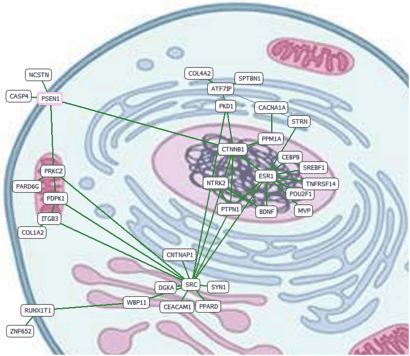
For better understanding your network, it may be useful to use a background image to indicate higher level structure of your network.
Now you can move the nodes to their respective structure in the image.

E.g. use the sketch of a cell to indicate localisation of genes to different cellular structures:

NB: In the example image, genes are randomly assigned.

Select:
Main menu | Edit | Load background image
or drag a *.bmp image file onto NewtViewer.

Images should be supplied as BMP file format.
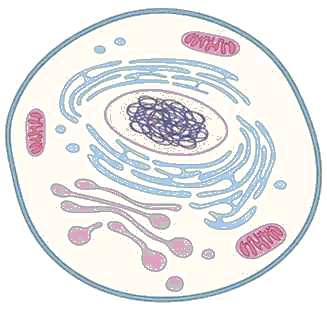

You may load multiple images and position them freely with the mouse.
Click into an image and move it left mouse button clicked.

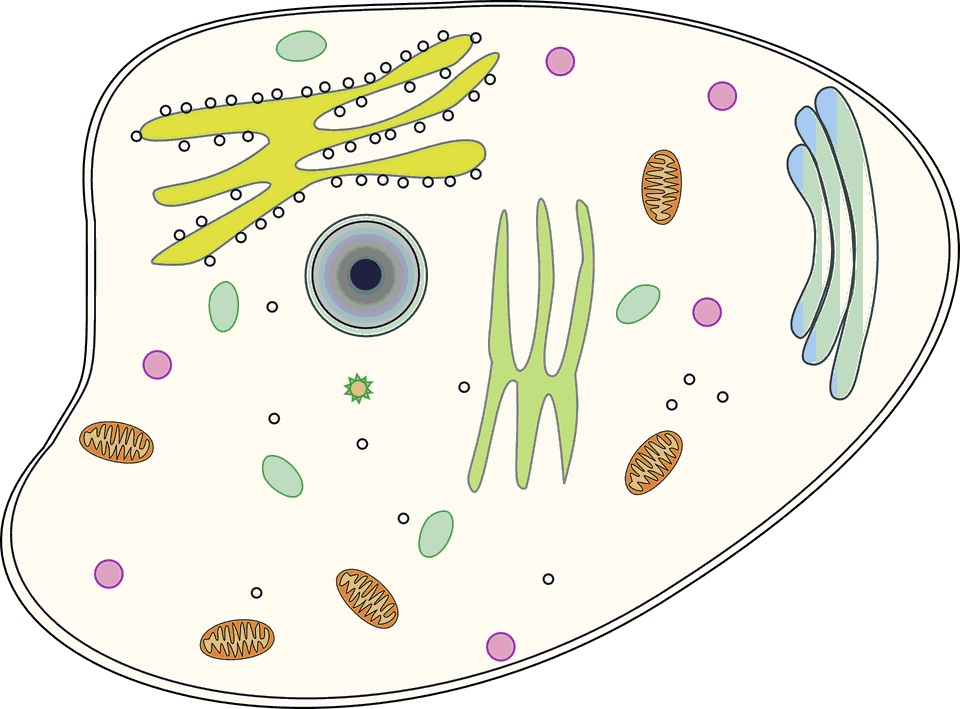
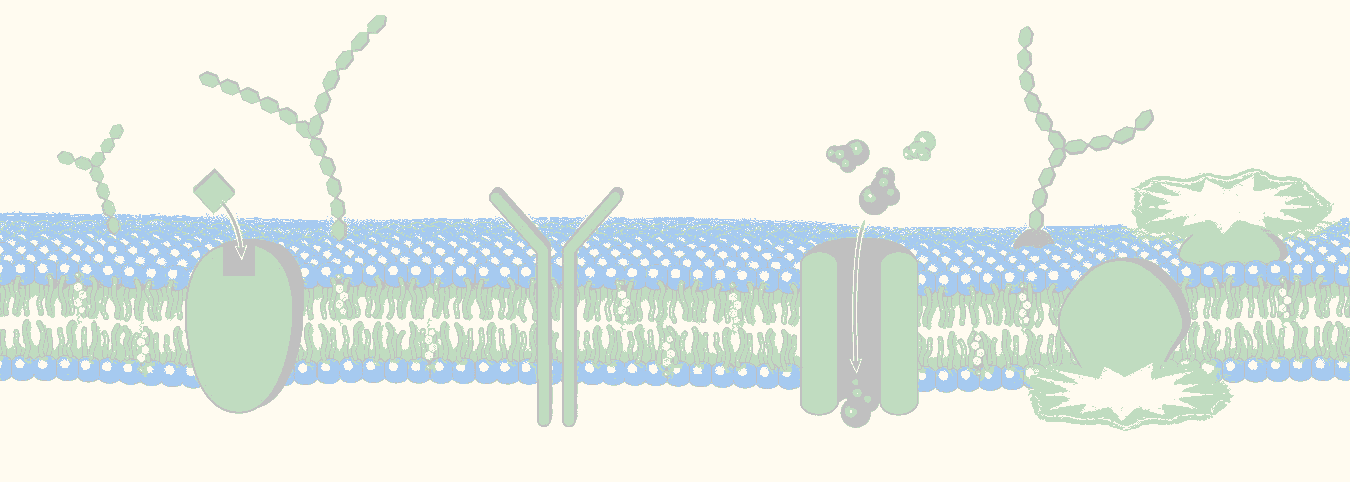
A few sketches found on the internet:
2010 Nature Education
pixabay
CC0 Public Domain
Greta Miller - Cell Membrane
What is Life? A Guide to Biology
2010 W.H.Freeman and Company